

Learning path
Cashier
કેશિયરकैशियर
The counter, from opening the register to the Z report — keys first.
- 44 lessons
- 8 parts
- A picture card for every lesson
Learn it inside your shop
In VASAH, Learning → My learning keeps your place in this path, gives you its short quiz and, at the end, your certificate.
Lesson 1: Sign in and open the registerThe lessons, in order
Every lesson is open — start with any one.
Part 1Starter: the 12 things every cashier does
 0:42Lesson 1: Sign in and open the registerStart the day: sign in at the counter and open the register with the cash in the drawer.0:42Picture card
 0:490:49Picture card
 0:320:32Picture card
 0:53Lesson 4: Add the customer's mobilePut the customer on the bill with just their mobile — known or new.0:53Picture card
 0:56Lesson 5: Give a discount (and when it needs approval)F4 for one piece, F5 for the whole bill; above your limit, a manager's PIN.0:56Picture card
 0:590:59Picture card
 0:47Lesson 7: Hold a bill and bring it backPark a bill while the customer tries something on, and serve the next one.0:47Picture card
 0:440:44Picture card
 0:510:51Picture card
 0:49Lesson 10: Reprint or WhatsApp a billA second copy says DUPLICATE COPY; with the mobile on the bill it also goes on WhatsApp.0:49Picture card
 0:43Lesson 11: When the internet dropsKeep billing: bills wait on this PC and sync when the internet is back.0:43Picture card
 1:05Lesson 12: Close the day (register)Count the drawer note by note, close the register and print the Z report.1:05Picture card
Part 2Start and end the day
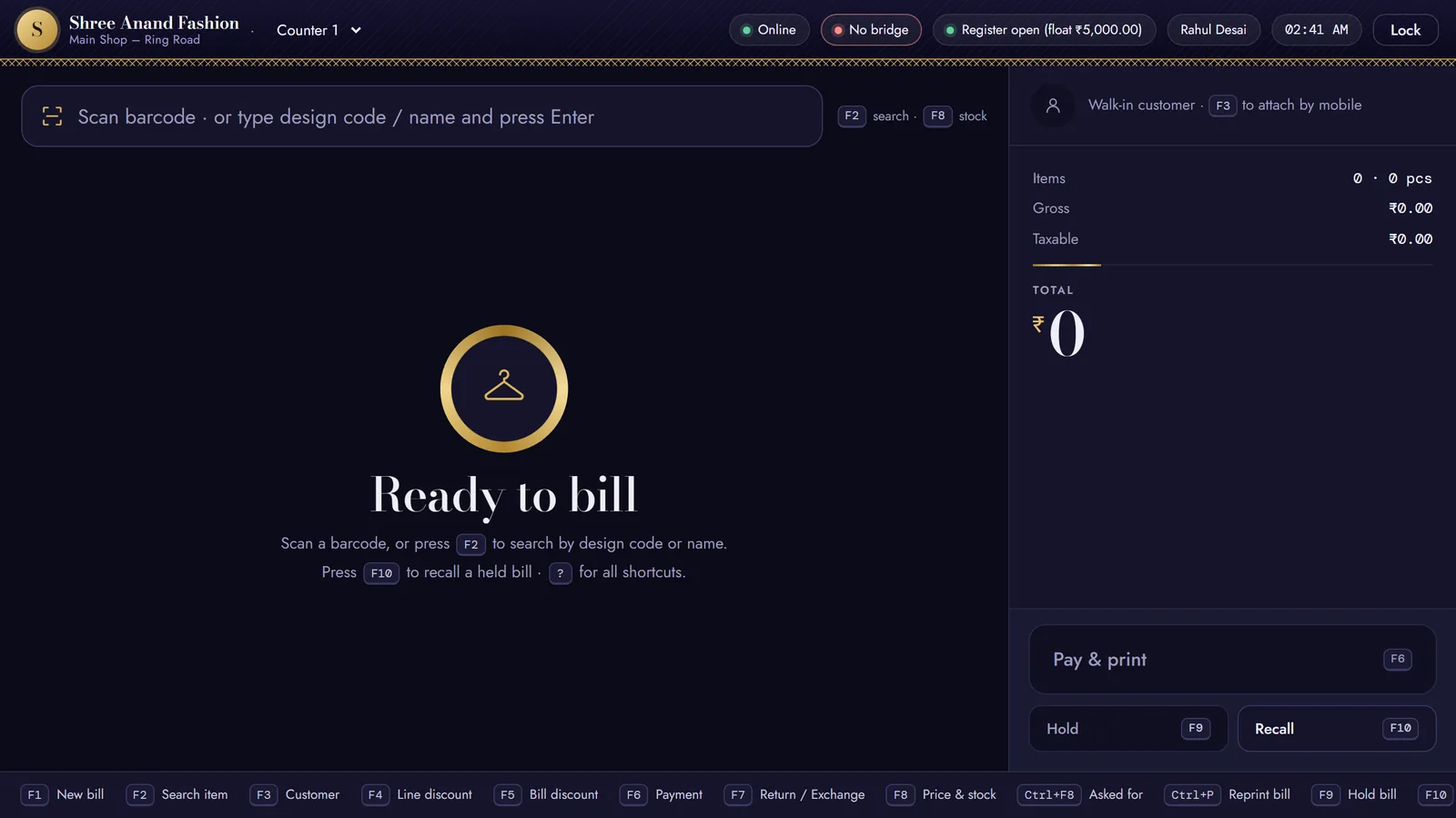 Lesson 13: Open the counter app and install it full-screenPut Vasah Counter on the counter PC so it opens full-screen and keeps billing without internet.
- Lesson 14: Choose your counter and open the register with the counted floatWith two tills, bill from your own — each has its own bill numbers.
- Lesson 15: Lock the counter with Ctrl+L and unlock with your PINStepping away? Lock the till so nobody bills in your name.
- Lesson 16: Switch cashier without signing outA shift change in seconds — every bill stays in the name of who made it.
Part 3Make a bill
- Lesson 17: Change quantity with + and −, remove a line with Ctrl+DFix a quantity, or take a piece off the bill, before payment.
- Lesson 19: Add a coupon code to the billThe customer has a code from WhatsApp or a card — the offer applies by itself.
- Lesson 20: Book an alteration with a ready-on dateNote the fitting work on the piece; a pickup slip prints with the bill.
- Lesson 21: Make a B2B bill with the buyer's GSTINFor a registered business buyer whose GSTIN is on their customer record.
- Lesson 22: Bill ₹50,000 or more to an unregistered buyer: name, address, stateGST rule 46: a big bill names the buyer and their address — the payment screen asks for what is missing.
- Lesson 23: Bill above ₹2 lakh: record PAN or Form 97Income-tax rule 159 (was rule 114B): a sale above ₹2 lakh records the buyer's PAN, or Form 97 (was Form 60) if they have none.
Part 4Take payment (F6)
- Lesson 24: Take cash and give changeType the note the customer hands over; the counter works out the change.
- Lesson 25: Take UPI with the on-screen QRThe QR carries the exact amount and your shop's name — see the money arrive before you save.
- Lesson 26: Take a card on the Pine Labs machineWith the machine connected, the counter sends it the amount and the card details come back by themselves.
- Lesson 27: Enter a card payment by handMachine not linked to the counter? Charge on the machine, then record the card here.
- Lesson 28: Split a bill between cash, UPI and cardOne bill, two or three ways to pay, until it says Fully paid.
- Lesson 29: Pay with store credit, a gift voucher or loyalty pointsMoney the customer already holds with the shop pays all or part of the bill.
- Lesson 30: Put a bill on credit (udhaar)For a known customer with a credit limit — a cashier needs a manager's PIN.
- Lesson 31: Collect money a customer owesTake a payment against old credit bills at the counter; the oldest bills are settled first.
- Lesson 32: What the counter does when cash would be ₹2 lakh or moreIncome-tax Act 2025, section 186 (was section 269ST): one person may not pay ₹2 lakh or more in cash in a day — the counter stops it.
- Lesson 33: Open the cash drawer without a sale (Alt+O)Change for a customer, or a cash check: the cashier asks with Alt+O, an owner or manager gives their PIN, and the reason is kept.
- Lesson 34: Save and print (F11) or save without printing (F12)Print the slip, or save paper when the customer does not want one.
Part 5Refunds and gift receipts
- Lesson 35: Give a refund as store credit or credit noteKeep the money in the shop: the credit note prints and the customer spends it on a later bill.
- Lesson 36: Print a gift receipt without pricesFor a present: what was bought and how to exchange it, with no prices.
Part 6Customers' questions
- Lesson 37: Check price, schemes and stock in other shops (F8 enquiry)Answer “do you have it in my size?” without touching the bill.
- Lesson 38: Note what a customer asked for that you did not have (Ctrl+F8)A few seconds now tells the owner what to buy next.
- Lesson 39: Take a complaint at the counterRegister it in the back office and read the complaint number to the customer.
Part 7When things go wrong
- Lesson 40: Check offline bills that have not syncedSee which bills made offline are still waiting, and which were refused.
- Lesson 41: What “No bridge” means and printing through the browserThe small print program on this PC is not answering — bills still print, through the browser.
- Lesson 42: Paper out or printer off: print the slip again from the status pillThe bill is already saved — only the paper is missing.
Part 8Language
- Lesson 44: Switch the counter to Gujarati or HindiEach PC keeps its own language; item names and printed bills stay as they are.